User Guide for Ailurus
Ailurus is a desktop app for managing tasks, optimized for use via a Command Line Interface (CLI) while still having the benefits of a Graphical User Interface (GUI). If you can type fast, Ailurus can get your tasks done faster than traditional GUI apps.
Table of Content
Quick start
-
Ensure you have Java
11or above installed in your Computer. -
Download the latest
ailurus.jarfrom here. -
Copy the file to the folder you want to use as the home folder for your Ailurus.
-
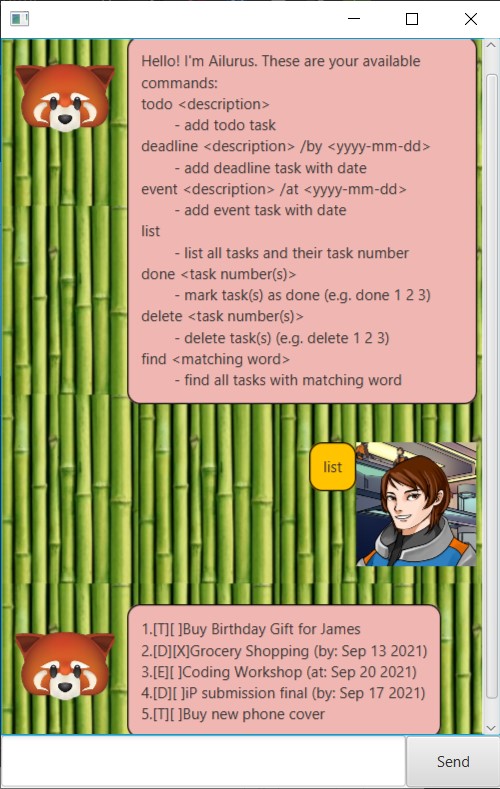
Double-click the file to start the app. The GUI similar to the below should appear in a few seconds.
-
Type the command in the command box and press Enter to execute it.
Some example commands you can try:
-
todoGrocery Shopping: Adds a task namedGrocery Shoppingto the task list. -
list: Lists all tasks. -
delete1: Deletes the 1st task shown in the current list. -
bye: Exits the app.
Refer to the Usage below for details of each command.
Features
Add, delete and list tasks
You are able to add, delete and list all the task you have added. There are 3 types of tasks you can add:
- todo: tasks with no parameters.
- deadline: tasks with deadline
- event: tasks that are at a specific date
Mark tasks as done
You can mark tasks as done and an X will be placed beside
the task.
Find task
You can search for the task you need with the find keyword.
Usage
todo - Add todo task
Add a task with no parameters.
Example of usage:
todo Buy Birthday Gift for James
Expected outcome:
Adds Buy Birthday Gift for James to task list.
Tells you how many tasks in the list after the addition.
Got it. I've added this task:
    [T][ ]Buy Birthday Gift for James
Now you have 1 tasks in the list
deadline - Add deadline task
Add a task with deadline date.
Example of usage:
deadline Grocery Shopping /by 2021-09-13
Expected outcome:
Adds Grocery Shopping to task list with date Sep 13 2021.
Tells you how many tasks in the list after the addition.
Got it. I've added this task:
    [D][X]Grocery Shopping (by: Sep 13 2021)
Now you have 2 tasks in the list
event - Add event task
Add a task with deadline date.
Example of usage:
event Coding Workshop /at 2021-09-20
Expected outcome:
Adds Coding Workshop to task list with date Sep 20 2021.
Tells you how many tasks in the list after the addition.
Got it. I've added this task:
    [E][ ]Coding Workshop (at: Sep 20 2021)
Now you have 3 tasks in the list
list - lists all tasks
Lists all tasks in database, unless there is none.
Loads tasks from data/tasks file if not empty.
Example of usage:
list
Expected outcome:
Returns a list of all tasks in task list.
1.[T][ ]Buy Birthday Gift for James
2.[D][ ]Grocery Shopping (by: Sep 13 2021)
3.[E][ ]Coding Workshop (at: Sep 20 2021)
done - mark as done
Mark task(s) as done by marking an X beside it.
Specify the task number(s) you wish to mark as done.
Example of usage:
done 2 3
Expected outcome:
Marks task 2 and task 3 as done
Nice! I've marked this task as done:
    [D][X]Grocery Shopping (by: Sep 13 2021)
    [E][X]Coding Workshop (at: Sep 20 2021)
delete - delete task(s)
Delete task(s) permanently. Specify the task number(s) you wish to delete.
Example of usage:
delete 2 3
Expected outcome:
Deletes task 2 and task 3, and tells how many tasks you have left in the list
Noted. I've removed this task:
    [D][X]Grocery Shopping (by: Sep 13 2021)
    [E][X]Coding Workshop (at: Sep 20 2021)

Now you have 1 tasks in the list.
find - find task(s)
Find tasks that match keyword. Not case-sensitive.
Example of usage:
find buy
Expected outcome:
Returns the tasks that match the keyword.
Here are the matching tasks in your list:
1.[T][ ]Buy Birthday Gift for James
bye - exit program
Exit program
Example of usage:
bye
Expected outcome:
Says goodbye and close program.
Bye. Hope to see you again soon!
FAQ
Q: How do I transfer my data to another Computer?
A: Install the app in the other computer and overwrite the empty data file it creates with the file that
contains the data of your previous Ailurus home folder.
Command summary
| Action | Format, Examples |
|---|---|
| Todo | todo TASKNAME e.g., todo Buy Birthday Gift for James |
| Deadline | deadline TASKNAME /by YYYY-MM-DD e.g., deadline Grocery Shopping /by 2021-09-13 |
| Event | event TASKNAME /at YYYY-MM-DD e.g., event Coding Workshop /at 2021-09-20 |
| List | list |
| Done | done INDEX [INDEX]…e.g., delete 2 3 |
| Delete | delete INDEX [INDEX]…e.g., delete 2 3 |
| Find | find KEYWORDe.g., find buy |
| Bye | bye |
Notes about the command format:
-
Words in
UPPER_CASEare the parameters to be supplied by the user.
e.g. intodo TASKNAME,TASKNAMEis a parameter which can be used astodo Grocery Shopping. -
Items in square brackets are optional.
e.gdone INDEX [INDEX]…can be used asdone 2 3or asdone 2. -
Items with
… after them can be used multiple times including zero times.
e.g.[INDEX]…can be used as ` ` (i.e. 0 times),2,2 3etc.